

Description
Download Crawler Radio MP3 Player – Free Internet Radio, Music Recorder & Playlist Maker
Overview – A Versatile Audio Companion for Home and Office
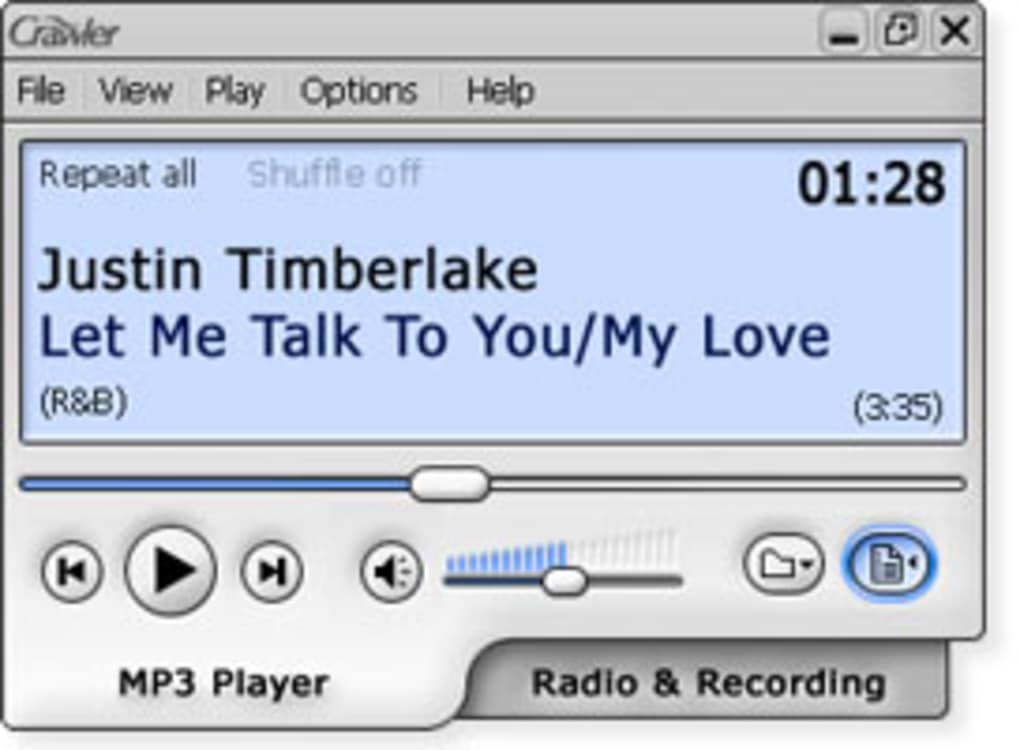
Crawler Radio MP3 Player is a refreshing, all‑in‑one audio solution that blends a classic MP3 player with a powerful internet‑radio tuner and recorder. Whether you are a casual listener who wants to stream favorite stations, a music enthusiast building playlists from local files, or a podcaster needing to capture live radio shows, this software delivers a seamless experience on Windows PCs. The interface is deliberately clean: a simple toggle lets you switch between the MP3 player mode and the Radio & Recorder mode, while a compact mini‑window keeps your desktop uncluttered. What sets Crawler apart is its ability to schedule recordings just like an old‑school VCR, automatically saving streams even when you are away from the computer. The built‑in playlist editor supports drag‑and‑drop of MP3 files, making it easy to organize your personal music library. Advanced users can dig deeper into recording settings, bitrate choices, and file‑naming conventions, while beginners will appreciate the intuitive preset list of popular stations that can be expanded with a single click. Overall, Crawler Radio MP3 Player offers a secure, free download that respects your privacy—no hidden telemetry, no forced upgrades, and a straightforward installation process. This makes it an ideal choice for anyone who wants a reliable, feature‑rich tool without the bloat of modern streaming apps.
Key Features – What Makes Crawler Radio MP3 Player Stand Out
- Dual‑Mode Operation: Switch instantly between MP3 playback and internet‑radio tuning.
- Scheduled Recording: Set start/stop times for any radio stream; the app records automatically, even when the PC is idle.
- Custom Presets & Stream Management: Save favorite URLs, organize them into folders, and access them with a single click.
- Drag‑and‑Drop Playlist Builder: Create, reorder, and save playlists by dragging MP3 files from Windows Explorer.
- Mini‑Window Mode: Minimise both player and recorder to a tiny overlay that stays on top of other applications.
- High‑Quality Recording Options: Choose bitrate (64‑320 kbps) and file format (MP3, WAV) for optimal audio fidelity.
- Secure, No‑Ads Experience: The free version contains no advertisements, trackers, or unwanted toolbars.
- Automatic Updates: The built‑in updater checks for new releases and applies patches without losing your settings.
- Lightweight Footprint: Consumes less than 30 MB of RAM during normal operation, keeping system performance high.
- Multi‑Language Support: Interface available in English, Spanish, German, and French.
Why These Features Matter
The dual‑mode operation eliminates the need for separate applications for music playback and radio listening. Scheduling recordings transforms Crawler into a personal radio archive, perfect for journalists, students, or anyone who wants to capture live content for later review. The drag‑and‑drop playlist builder respects the workflow of musicians and DJs who often curate sets on the fly, while the mini‑window mode ensures the player never interferes with other tasks. By offering high‑quality recording settings, Crawler guarantees that saved streams retain the original broadcast clarity, which is essential for archival purposes. Finally, the ad‑free, privacy‑first design reassures users who are increasingly wary of data‑harvesting software.
Installation, Usage & Compatibility – Get Started in Minutes
Step‑by‑Step Installation Guide
- Visit the official Crawler Radio MP3 Player website and click the Download for Windows button.
- Run the installer (CrawlerRadioSetup.exe). Windows may prompt you to confirm the source; click Yes to continue.
- Accept the End‑User License Agreement, then choose the destination folder (default is
C:\Program Files\Crawler Radio). - Click Install. The wizard extracts files and creates a desktop shortcut.
- When installation finishes, launch the application. The first‑time startup wizard will ask whether you want to import existing MP3 folders or start with preset radio stations.
How to Use the MP3 Player
After launching, the MP3 player tab appears by default. Click File → Add Files or simply drag music files from Windows Explorer into the playlist area. Use the Play / Pause controls at the bottom, and adjust volume with the slider. Right‑click any track to access options such as Remove, Rename, or Export Playlist. The player supports repeat, shuffle, and a quick‑skip forward/backward function.
How to Tune and Record Internet Radio
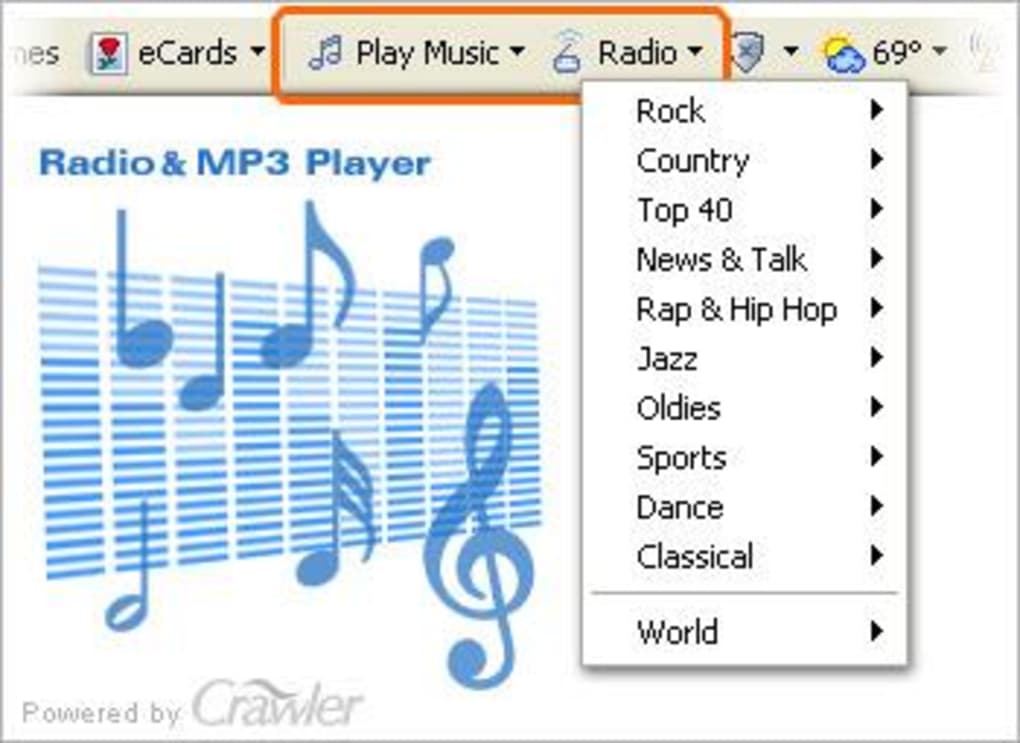
Switch to the Radio & Recorder tab. The left pane displays a list of preset stations (e.g., BBC World Service, NPR, Radio Swiss Classic). To add a new station, click Add Stream, paste the stream URL (most stations provide an .m3u or .pls link), and give it a friendly name. To schedule a recording, select a station, then click Schedule. Set the start and stop times, choose a destination folder, and optionally enable “Record only when volume is above X%” to avoid silence. Once saved, Crawler will run in the background and create files automatically, naming them based on the station name and timestamp.
Operating System Compatibility
Crawler Radio MP3 Player is built for Microsoft Windows 7, 8, 8.1, and 10 (both 32‑bit and 64‑bit). The installer checks for necessary .NET Framework components and prompts you to install them if missing. While there is currently no native macOS or Linux version, the application runs smoothly under Wine on Linux distributions, offering a viable workaround for advanced users.
Pros & Cons, Frequently Asked Questions, and Final Verdict
Pros
- Free download with no hidden fees or ads.
- Combines MP3 playback, radio streaming, and scheduled recording in one package.
- Intuitive drag‑and‑drop playlist creation.
- Robust scheduling feature works like a VCR for internet radio.
- Low system resource usage; ideal for older PCs.
- Secure and privacy‑friendly; no telemetry.
Cons
- Only available for Windows; no native macOS or mobile app.
- Advanced recording options may be overwhelming for beginners.
- Occasional stream incompatibility with newer DRM‑protected stations.
Frequently Asked Questions
Can I record a radio stream while the computer is asleep?
Crawler uses Windows’ power‑management API. If the PC is set to “Sleep,” recording will pause. To capture 24/7 streams, set the power option to “Never sleep” or use “Hibernate” with “Allow wake timers.”
What audio formats can I export recordings to?
The recorder supports MP3 (default) and WAV. You can select the desired format in the recording settings before scheduling.
Is there a limit to the number of stations I can add?
No practical limit. The list is stored in a local XML file, so you can add hundreds of stations as long as you have enough disk space for the configuration file.
How does Crawler handle DRM‑protected streams?
The application respects DRM. Streams that require proprietary codecs may not play or record. In such cases, you can try adding the stream URL in a different format (e.g., direct MP3 URL) or use a third‑party decoder.
Can I import existing playlists from other players?
Yes. Crawler can import M3U, PLS, and XSPF playlists. Use File → Import Playlist and select the appropriate file.
Conclusion – Should You Download Crawler Radio MP3 Player?
In a market flooded with subscription‑based streaming services, Crawler Radio MP3 Player offers a refreshing, cost‑free alternative that respects both your time and privacy. Its combination of a reliable MP3 player, an easy‑to‑use radio tuner, and a VCR‑style scheduler makes it a uniquely versatile tool for music lovers, podcasters, and archivists alike. While the lack of native macOS and mobile versions may limit cross‑platform users, Windows owners will find the lightweight, ad‑free experience hard to beat. If you need a dependable way to capture live radio shows, build custom playlists, or simply enjoy internet radio without a constant internet connection, Crawler delivers the features you need without the overhead of modern streaming giants. Download Crawler Radio MP3 Player today and start turning every broadcast into your personal library.
Guides & Tutorials for Crawler Radio MP3 Player
How to install Crawler Radio MP3 Player
- Click the Preview / Download button above.
- Once redirected, accept the terms and click Install.
- Wait for the Crawler Radio MP3 Player download to finish on your device.
How to use Crawler Radio MP3 Player
This software is primarily used for its core features described above. Open the app after installation to explore its capabilities.
User Reviews for Crawler Radio MP3 Player 0
No reviews found





